Automated Video: skills with their own UI
How your clone produces finished, narrated videos, and how review pages let you approve the script, storyboard and clips before anything is rendered.
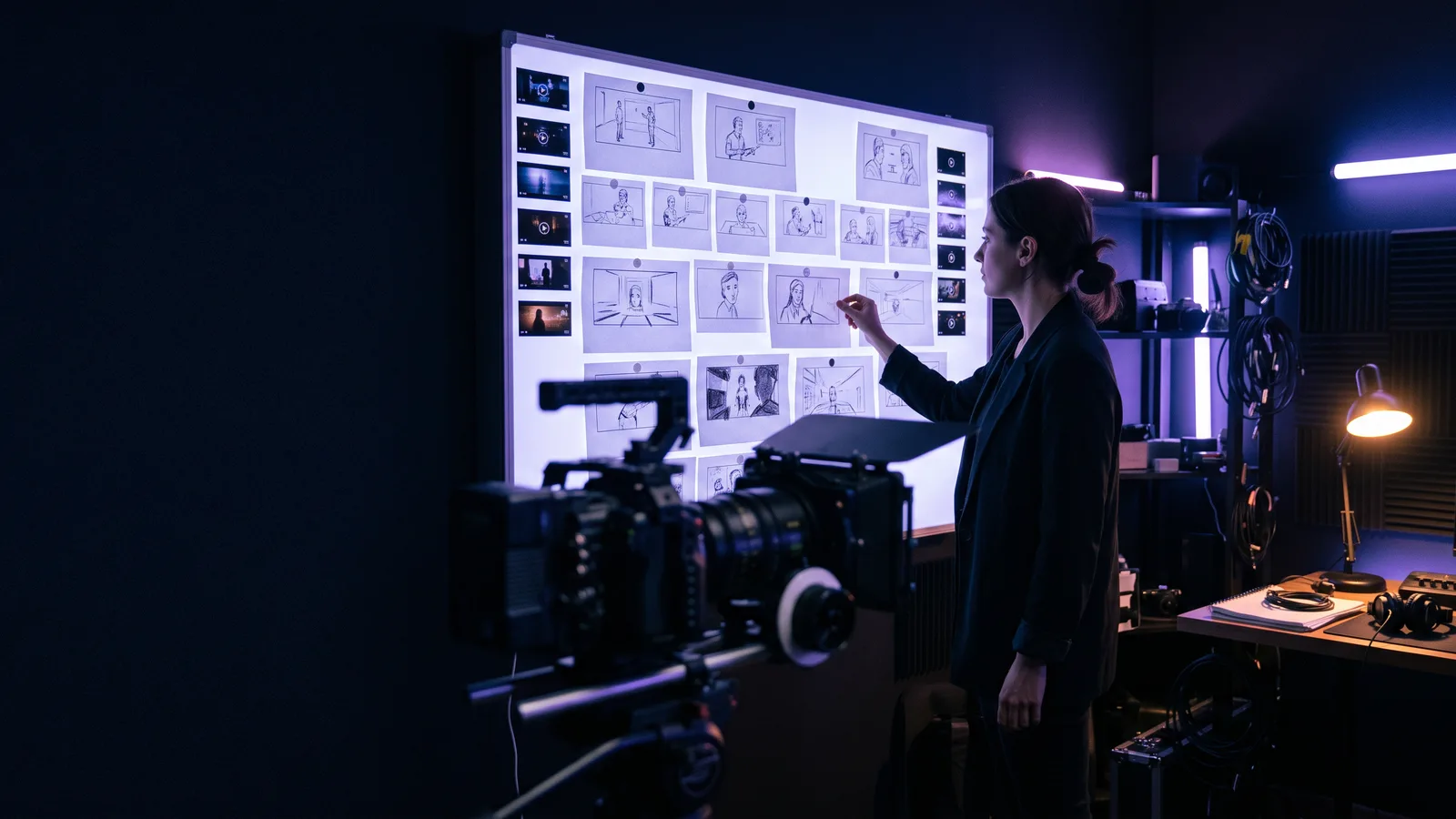
Most skills finish their work inside a chat reply: an email drafted, a meeting booked, a record updated. Some work is too big for that. A finished video has a script, dozens of scenes, images, voice, music and an edit. You want to see it, change it and approve it before it's made.
That's what skills with their own UI are for. Your clone starts the job in chat, and when it's time for your input, you get a private review page built for that job. Automated Video is the clearest example, and this guide walks through it end to end.
What "skills with their own UI" means
A normal skill is a capability your clone uses and reports back on in chat. A skill with its own UI adds a purpose-built screen for the moments where a person needs to look, decide or edit:
- Review and approval pages: see the plan, change it, approve it.
- Progress updates: your clone tells you in chat what stage the job is at and roughly how long is left.
- Delivery by email: the finished result arrives in your inbox with links to download it.
You still start and steer everything from chat. The UI shows up only when it's genuinely faster than describing a change in words. Rearranging a storyboard, for example, is much easier when you can see it.
What Automated Video makes
Give your clone a topic and a few details, and it produces a finished, narrated video:
| You choose | Options |
|---|---|
| Format | How-To / Tutorial, Explainer, Case Study, Trend Analysis and many more |
| Length | Under 50 seconds for Shorts and Reels, 1–2 minutes, 3–4 minutes |
| Shape | 16:9 for YouTube and the web, 9:16 for Shorts, Reels and TikTok, 1:1 square |
| Look | Photorealistic (default), Cinematic, Cartoon, Anime and more |
| Language | The narration language |
| Your clone on screen | Where the clone's avatar appears (lower right by default) |
The clone that makes the video can present it, using its own face and voice. You can also ask your clone to make a thumbnail with Image Operator.
How to ask
You can ask casually ("make a 1-minute how-to video on resetting a password in our app, send it to me"), or use a full brief. A brief gives you the most control:
Use Clone Automated Video to make a video.

Topic: how to create and share a dashboard in Acme Analytics
Key steps: 1) open Dashboards 2) click New 3) pick a template 4) add three widgets 5) click Share
Video type: How-To/Tutorial
Duration: 1-2 minutes
Aspect ratio: 16:9
Visual style: Photorealistic
Language: English
Avatar overlay position: Lower Right
Send the finished video to: you@company.comMore ready-to-use briefs are in the Automated how-to videos use case.
What happens after you ask
1. Your clone confirms what it understood
Right away, your clone tells you what it understood (topic, format, length, shape) and which approvals are coming. If something's wrong, say so now.
2. Research and script
The skill researches the topic, using your clone's knowledge (your product docs, brand guide, FAQs) as well as the web, and writes a scene-by-scene script.
3. Review stop 1: the script
You get a link to the script review page. Here you can:
- read every scene's narration and on-screen text
- edit any line directly
- change a scene's type
- approve, or cancel the video
Script review is quick, and it's the cheapest moment to change direction.
4. Review stop 2: the storyboard
Once the script is approved, the skill designs the visuals: a frame for each shot. The storyboard review page shows them in order with the narration underneath. You can:
- regenerate any image, with a note about what to change ("make it daytime", "show a laptop, not a phone")
- swap a shot's treatment (for example, a still image with motion instead of an AI video clip)
- upload your own image for a shot
- approve, or cancel
5. Review stop 3: the clips
After the storyboard is approved, the video clips are rendered. On the clips review page you can watch each shot, approve it, or ask for a redo with a new prompt or a different model, before the final edit is assembled.
6. Final edit and delivery
The skill assembles the final video: narration in your clone's voice, music, captions and titles, and an end card. Then it's emailed to you with download links. Your clone sends you the link in chat too, and posts status updates throughout: "storyboard ready", "rendering clips, about 10 minutes left".
Going hands-off
Some videos don't need a person in the loop, such as a weekly series from a topic list. Say "run it automated", "no review" or "just make it", and the video goes straight through without stopping for review.
Anatomy of a great video brief
The brief is the single biggest factor in how good your first draft is. A great brief answers five questions:
- Who is watching? "New customers in their first week" and "IT admins evaluating us" need very different videos.
- What should they be able to do afterwards? One clear outcome per video. "Create and share a dashboard" is a video. "Everything about dashboards" is a series.
- What are the steps or points, in order? List them. The script follows your order.
- What must be exactly right? Product names, button labels, numbers, claims. Put them in quotes, and make sure your clone's knowledge has the current versions.
- Where will it live? YouTube and your help center want 16:9; Shorts, Reels and TikTok want 9:16 and under 50 seconds.
Choosing a format
| Format | Best for | Typical length |
|---|---|---|
| How-To / Tutorial | Step-by-step tasks: "how to connect your calendar" | 1–4 minutes |
| Explainer | A concept or a feature: "what is a knowledge base?" | Under 50 seconds to 2 minutes |
| Case Study | A customer story: challenge, solution, result | 2–4 minutes |
| Trend Analysis | What's changing in a market, and why it matters | 2–4 minutes |
There are many more formats beyond these four. If you're not sure which fits, describe what you want the video to do and ask your clone to recommend one.
A worked example
The ask:
"Make a 1–2 minute how-to video on scheduling a recurring task in our app. Steps: open Schedule, click New, set the time and repeat, paste the prompt, save. 16:9, photorealistic, English. Send it to me."
What happens:
- Within moments, your clone confirms: How-To/Tutorial, 1–2 min, 16:9. You'll get a script review link, then a storyboard review link, then clips to approve.
- A few minutes later, the script link arrives. You notice the narration says "Calendar" where your app says "Schedule", fix the two lines and approve.
- The storyboard link arrives next. One frame shows a phone where it should show a laptop, so you regenerate it with a note ("desktop browser, not a phone") and approve.
- The clips are rendered. You redo one shot that felt too fast, and approve the rest.
- Your clone posts "assembling the final edit", and shortly afterwards the finished video lands in your inbox.
Total hands-on time: a few minutes of reviewing. No recording, no editing software.
Tips for the review pages
- Read the script out loud. Narration that reads fine can sound stiff when spoken. Short sentences win.
- Check every on-screen word in the storyboard: product names, numbers and labels.
- Use your own images for anything that must be exact, such as a real screenshot of your product or your logo.
- Don't over-polish clips. Approve shots that are right; redo only the ones that are wrong. Every redo uses credits.
- Cancel early if the direction is wrong. Cancelling at the script stop costs almost nothing.
Why review stops matter
Video generation is the expensive part. A review stop before rendering means:
- You only pay for what you approved. A wrong scene is fixed in the script for almost nothing, not after rendering.
- You stay in control of your brand. Every line and every frame is something you saw.
- Your clone learns your taste. Your edits show it what you like for the next video.
Turning it on
Automated Video is a skill. Ask your clone, "Turn on the Clone Automated Video skill", or add it from Skills → + Add. Video generation uses credits, based on length, format and how much is rendered.
Ideas to start with
- Support: a how-to video for every common ticket, linked from the help article. (This site does exactly that: every how-to video here has a written article alongside it.)
- Customer success: onboarding videos for each step of setup.
- Marketing: feature explainers, social cut-downs, anonymized case studies.
- Sales: a short personalized explainer for a prospect's industry.
- Weekly series: keep a topic list in a spreadsheet, and have your clone make the next video each week.
Common questions
How long does a video take? It depends on the length, the format and how long you take at each review stop. Your clone tells you where it is and roughly how much longer at each step.
I approved the storyboard but want to change something. Tell your clone what you'd like changed. If clips are already rendering, the clips review stop is your next chance to redo a shot.
Can my clone upload the video to YouTube for me? The finished video is delivered to you by email. Publishing it is your call.
I didn't get the review link. Check the chat with your clone and the email address you gave. If it's not there, ask your clone for the review link, or open a support case.
Can I make videos in other languages? Yes. Tell your clone the narration language.
Was this helpful?
Thanks. That helps us make this better.
