Add video effects: the finishing pass
How whole-video effects work in Automated Video, and how to pick color grades, finishes, overlays and transitions on your review page. Under a minute.
Presented by Aya Kiyori.

Video effects are a finishing pass for videos made with Automated Video. They style the whole video at once, and you choose them on your private review page, not in chat.
What you'll learn
- Which kinds of whole-video effects you can pick
- Where to find the Whole video panel
- How to choose effects that look intentional
- When your effect settings are locked in
- Why asking for an effect in chat doesn't apply it
What video effects are
Effects style the whole video: color grades, looks, finishes, overlays and transitions. They're all off until you pick one. Watch from 0:04
Step by step
1. Ask to review your video
In chat, ask your clone to review your video. Clone sends you a private link. On that page, the Whole video panel sits above your scenes. Watch from 0:12
2. Choose your effects with restraint
In the Whole video panel, pick only what you need. One color grade plus one finish looks intentional. For example, teal and orange with film grain. Letterbox cinema bars also suit 16:9 videos. Watch from 0:19
3. Check the storyboard and approve
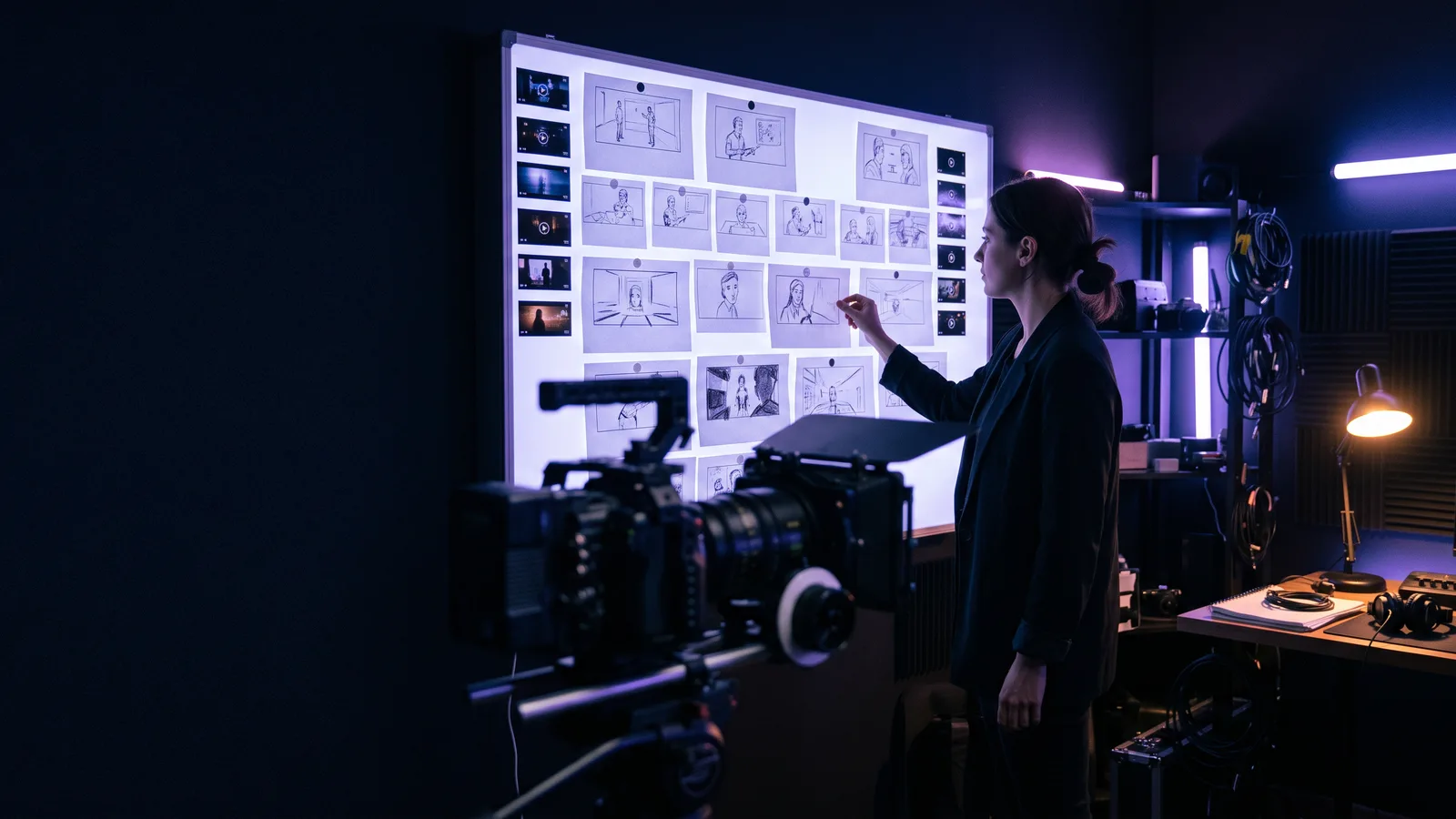
Look through the storyboard frames for your scenes, then click Approve. Clone builds the video with the effect settings you have at that moment, so finish choosing before you approve. Watch from 0:32
Common questions
Can I just ask my clone in chat to add an effect? No. Effects only apply when you choose them in the Whole video panel on your review page.
Will effects throw off lip-sync or the music? No. Effects never change the length or timing of the video, so lip-sync and music stay in sync. Watch from 0:43
Are any effects on by default? No. All effects stay off until you pick one.
What combination should I start with? One color grade plus one finish, such as teal and orange with film grain. For 16:9 videos, letterbox cinema bars are also a good fit.
What if I change an effect after approving? Clone uses the settings you had when you clicked Approve. Pick your effects before you approve.
Related
- Automated Video: skills with their own UI
- Automated How-To Videos use case
- Marketing: how-to video prompt
- Image Operator: create and edit images by asking
Read the transcript
Clone's video effects are a finishing pass. Here's how they work.
Effects style the whole video: color grades, looks, finishes, overlays, and transitions. They start off until you pick one.
First, ask to review your video. Clone sends a private link with the Whole video panel above your scenes.
Then choose with restraint. One color grade plus one finish, like teal and orange with film grain, looks intentional. Letterbox cinema bars also suit 16 by 9 videos.
Finally, check the storyboard and approve. Clone builds the video with your settings at that moment.
A common mix-up: asking for an effect in chat doesn't apply it.
Effects never change length or timing, so lip-sync and music stay aligned.
To sum up: review, choose, approve.
What should we break down next?
Was this helpful?
Thanks. That helps us make this better.